How to Plan and Schedule a Week of Social Media Posts With AI (2026)
Say you’ve lined up a week of social posts around a Wednesday release. By Wednesday morning, the feature has slipped, the walkthrough still needs a screenshot, and the link in the announcement points to a preview page. Can you hold both posts and move Friday’s tip into the open slot?
Use AI to turn one weekly brief into drafts for each channel. Keep posts that depend on the release in drafts until it ships. On publishing day, check the public link and the queue before you send the announcement.
How do you build a weekly social media plan with AI?
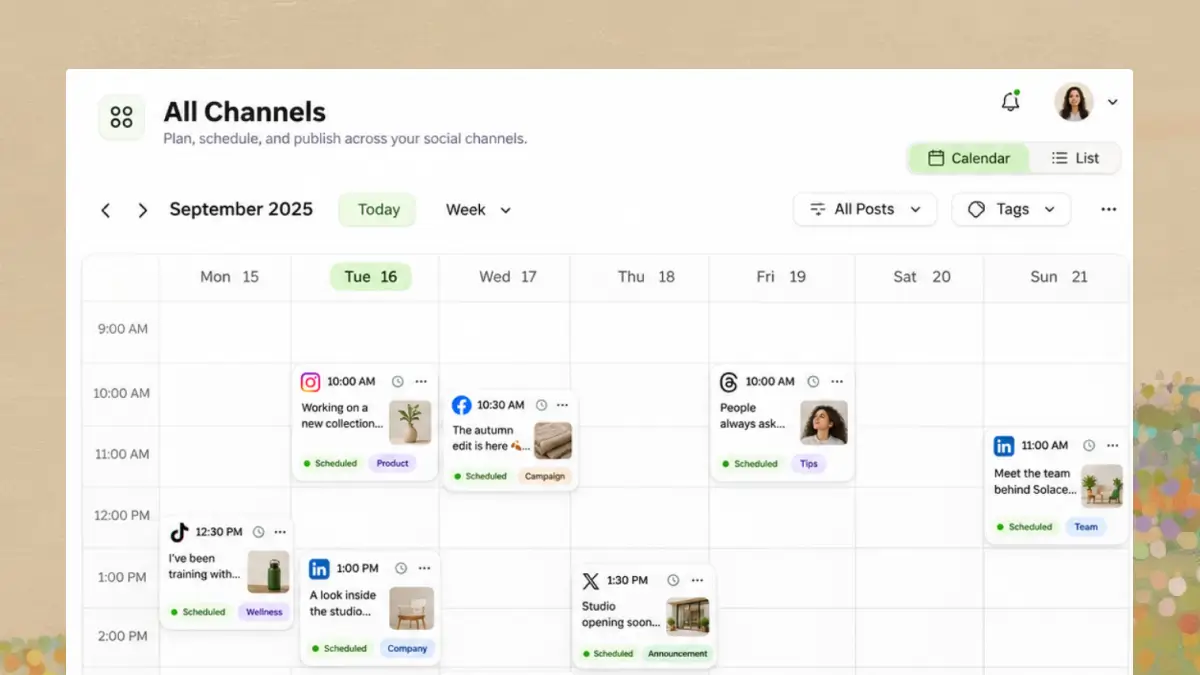
Example weekly content calendar with posts grouped by day and channel.
Suppose your team wants to announce a CSV export feature on Wednesday. Give the AI that goal, the release note, and the screenshot and link readers should see. Ask it for one row per post. Each row should say where the post goes, what it’s for, and what you need to check before it can go live. In this example, the team has two connected accounts, on X and LinkedIn.
| Day | Channel | Post | Publish when |
|---|---|---|---|
| Monday | Explain the manual reporting problem the team is working on | The post can stand on its own without naming a launch date. | |
| Wednesday | X | Share a short release announcement with a link | The feature is live and the public link works. |
| Thursday | Show how to export a report using one screenshot | The export is available and the screenshot matches the live product. | |
| Friday | X | Share an evergreen tip about cleaning up exported data | The tip works with any CSV. Keep it ready as a backup. |
Monday’s post can go out on its own. Leave the announcement and walkthrough in drafts until the feature ships. On X, tell readers what shipped and where to try it. On LinkedIn, show what changes for someone who puts together reports every week.
Use this prompt with your own brief.
Build a five-day social media plan from the notes below. My goal is [goal]. The accounts are [accounts] and the publishing time zone is [time zone]. Suggest one row per post with the channel, angle, source material, and what must be true before it goes live. Draft each post for its channel. Mark missing links, assets, and unconfirmed claims as needs review. Leave room for one evergreen backup. Keep every item as a draft until I approve its final copy, account, and time.
Tell your AI client which drafts you’ve approved. Use the draft ID if several have the same title. Give the client the exact account and time for each post, then ask it to list what it scheduled. Compare that list with your brief. PostPiper post tools
What should you check before today’s posts go live?
Start with the posts due today. If you hold an announcement, open tomorrow’s queue too. A walkthrough can still be scheduled even after you’ve taken the release post out of the queue.
- Open the public link. Check that readers can use the feature and that the copy and screenshot match what they’ll see.
- Check the account and the publish time in the right time zone. If the launch slips, hold the announcement and any follow-up that depends on it.
- Reopen the queue. The held posts should have no active publish time, and the replacement should appear once. After the scheduled time, check the status and open the live post. PostPiper post tools
Say the CSV export slips to Friday. Keep the announcement and walkthrough in drafts. If the evergreen tip is already in Friday’s queue, move that entry to Wednesday. Once the release link works on Friday, schedule the announcement. If the screenshot still needs review, push the walkthrough to next week.
Which AI social media scheduler fits your workflow?
Follow a draft from the first caption to the publishing queue. Can you find and edit the saved draft? Once you schedule it, open the queue and check that it has the final copy, the right social account, and the time you chose.
One reader in r/socialmedia wanted “a scheduler with a built-in writer, and I keep the final approval.” r/socialmedia discussion
| Tool | Best fit | What the plan includes and where it has limits |
|---|---|---|
| PostPiper | Draft and schedule X and LinkedIn posts from a compatible AI client | Free starts with 30 one-time post credits. Connect your social accounts and set up the client before you can schedule from chat. Pricing · MCP setup |
| Buffer | Write with AI and refill a small queue from a dashboard | Free includes AI Assistant, up to three channels, and 10 queued posts per channel. Team lists approval workflows at $10 per channel per month billed annually. Pricing |
| Planable | Get client approval on an AI-assisted draft before it enters the queue | Required approval is available on Pro at $59 per workspace billed monthly. The trial includes 50 created posts and excludes X publishing. Pricing FAQ · Trial terms · AI caption tool |
| SocialBee | Fill recurring calendar slots with ready-to-publish content by topic | Bootstrap costs $29 per month billed monthly and includes AI content generation, five social profiles, and 10 content categories. Give time-sensitive material its own category so you can pause it separately. Pricing · Scheduler guide |
| Later | Arrange Instagram visuals and draft captions before publishing | Starter costs $18.75 per month billed yearly, with 30 posts per profile and five AI credits per month. Drafts appear in the Instagram grid preview on desktop. Pricing · Instagram Planner |
Prices are in USD. We checked the published plans on November 9, 2026. The examples are scenarios you can try. For a broader comparison, see our AI social media scheduler guide.
How would these tools handle the same campaign?
- In Planable, turn on Required approval and ask a teammate to try scheduling the announcement before the client signs off. The post should stay out of the queue until someone with approval permission signs off. Planable approval workflows
- In SocialBee, give evergreen tips and dated announcements separate categories. Pause the announcements when the release slips, then check that the tips are still queued. SocialBee categories · Paused categories
- If the campaign runs on Instagram, put the announcement graphic and walkthrough in Later’s desktop grid preview. Swap their order and open both posts to see when they’ll go out and which publishing mode each one uses. Later Instagram Planner
Use the same brief if you try two schedulers. Count the steps from holding the announcement to confirming the replacement in the queue. Price both plans for the channels or client workspaces you manage.
Frequently asked questions
What is the best AI scheduler for daily social media posting?
Try PostPiper if you write X and LinkedIn posts in an AI chat. Try Buffer if you want help writing captions in the dashboard where you schedule them. In either tool, open today’s queue after scheduling and confirm the posts are there. PostPiper MCP setup · Buffer AI Assistant
Is there a free AI scheduler for social media?
Yes. Buffer Free has 10 queue slots per channel for up to three channels. You can refill those slots as posts go out. PostPiper Free starts with 30 one-time post credits and lets you schedule from the dashboard or a compatible AI client. Planable counts every post you create toward its 50-post trial, including drafts. Buffer pricing · PostPiper pricing · Planable pricing FAQ
How do I choose an AI scheduler for weekly content planning?
Try it with next week’s brief and two channels. Leave the launch date open. Review the draft for each channel, then see if you can queue a backup while the release posts are still in drafts.
What should an AI social media calendar show?
You should be able to see where and when each post will go out, including the time zone, and open it to check the final copy, media, and status. Use the brief or calendar notes to record what each post is waiting on. If two posts need the same release or approved image, you’ll know to move them together.
Can AI make a social media schedule without connecting my accounts?
Yes. Give the AI your brief and ask for a calendar and drafts for each channel. To publish, add the approved posts to your scheduler yourself or connect a compatible AI client to a scheduler that has access to your social accounts. PostPiper MCP setup