Can You Preview a LinkedIn Post Before Posting? (Without Publishing It)
No. LinkedIn has no built-in post preview that shows how your post will render or fold in the live feed before you publish. Paste the draft into PostPiper’s free LinkedIn post preview to check the fold first.
You can save a draft or schedule a post to proofread your text, but LinkedIn's composer never shows where the ...see more cutoff lands on mobile versus desktop.
To see the layout first, paste your draft into a free LinkedIn post preview tool. You can check line breaks, see whether your opening hook survives the fold, and test how an image shifts your text before anything goes live.
Why LinkedIn posts break: the “see more” cutoff
A good LinkedIn post often gets scrolled past simply because the opening line gets cut off halfway through. LinkedIn truncates posts at different character limits depending on the screen width and media type:
| Post format | Desktop cutoff (approx.) | Mobile cutoff (approx.) | Visible lines before the fold |
|---|---|---|---|
| Text-only post | ~210 characters | ~140 characters | 3 lines on desktop, 2 to 3 lines on mobile |
| Image or video post | ~140 characters | ~100 characters | 2 lines |
| PDF carousel (document) | ~140 characters | ~100 characters | 2 lines |
| Link preview post | ~140 characters | ~100 characters | 2 lines |
Hard line breaks (pressing Enter) also eat into your visible space, even if a line only has three words. If you put two blank lines inside a three-line opening, LinkedIn will usually hide your second sentence on mobile.
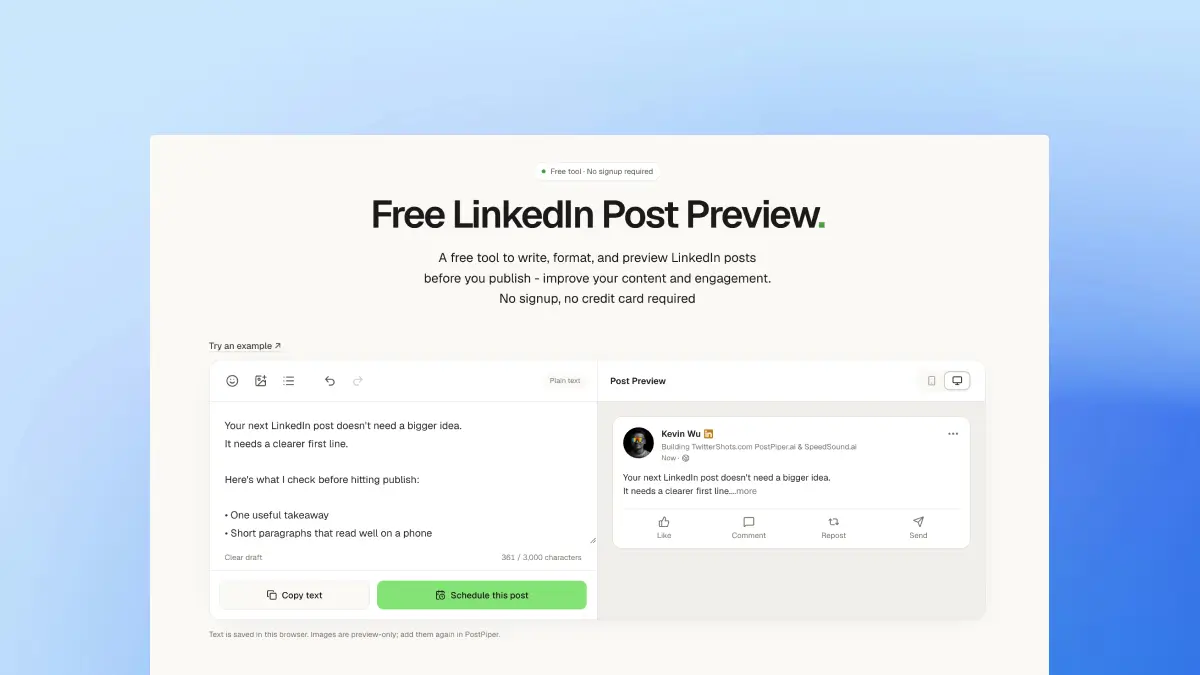
Desktop preview. The wider feed card keeps more of the opening visible.
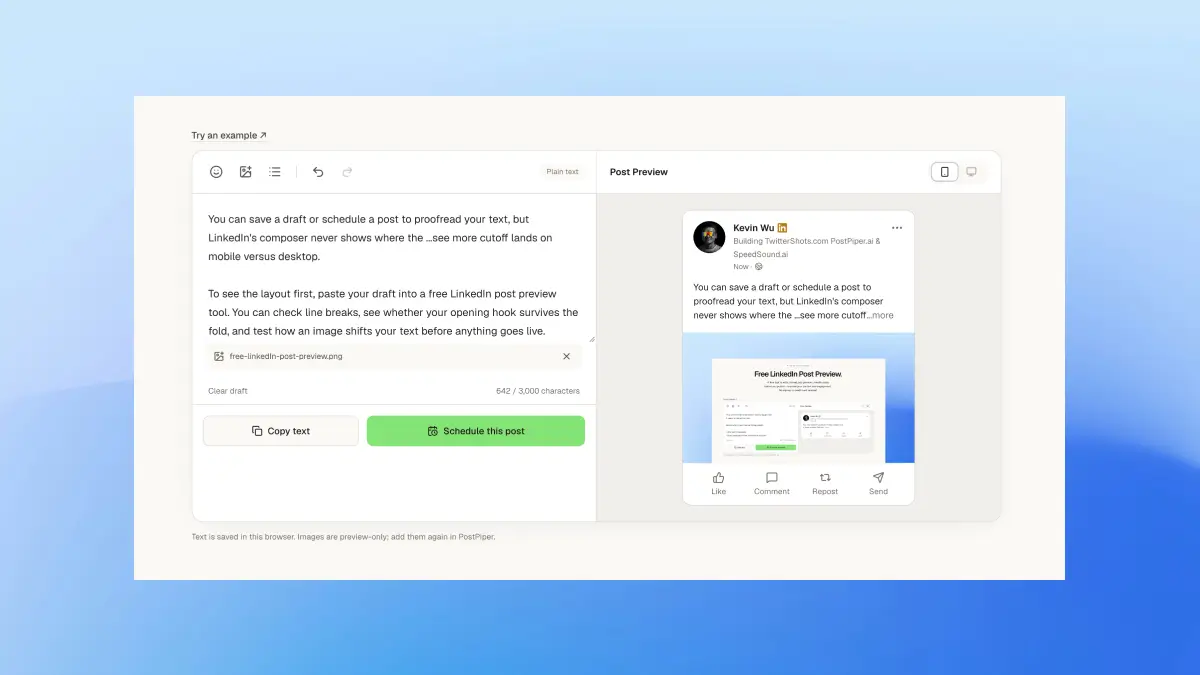
Mobile preview of the same draft. The narrower card folds the text sooner, so a hook that fits on desktop can still be cut off mid-sentence on a phone.
How to preview a LinkedIn post for free
You don't need a test account or a publish-and-delete workaround to check your layout. Here is how to preview a LinkedIn post in under a minute:
- Open PostPiper's free LinkedIn post preview. No login or signup is required.
- Paste your draft text, emojis, bullet points, and hashtags into the editor.
- Add a JPEG or PNG image if the post will include one. This preview shows a single image. Video, document carousels, and multi-image layouts are not shown, and LinkedIn folds those formats earlier than a text-only post.
- Switch between Mobile and Desktop to see where each screen folds your text.
- Trim filler words or adjust line breaks until your opening hook fits above the fold on mobile.
- Copy the finished text back to LinkedIn, or continue into PostPiper to schedule it.
Try it now: Check your next post's hook and layout with the free LinkedIn post preview. No signup required.
LinkedIn's composer is not a feed preview
Writing inside LinkedIn's "Start a post" box gives you a distorted view of your post. The modal stretches your copy across a fixed width that doesn't match the actual news feed, and it hides the truncation line completely until after you hit publish.
A dedicated previewer mirrors mobile and desktop card widths while you write. You can spot a wall of text, broken spacing, or an orphaned emoji before you risk posting a half-finished draft.
Four formatting checks before you publish
Once you can see the layout, a few small edits make a post easier to read.
Put the hook in the first 120 characters
Most people scroll LinkedIn on a phone. Lead with the main point or a specific number in the first two lines. "I'm excited to announce..." spends the visible lines before the reader knows what the post is about.
Write for a phone screen
Keep paragraphs to one or two short sentences, with space between them. A five-line paragraph can look fine on a large monitor and still read as a dense block on a phone.
Use stylized fonts sparingly
Unicode bold and italic characters can mark a subheading, but heavy use causes two problems. Screen readers often skip or misread them, and LinkedIn search does not index those characters the same way it indexes plain text.
Keep hashtags and links at the bottom
Use three to five relevant hashtags at the end of the post so they don't crowd the opening. If you need a starting set, the free Instagram hashtag generator turns a short description into grouped ideas. Keep only the tags that fit this LinkedIn post.
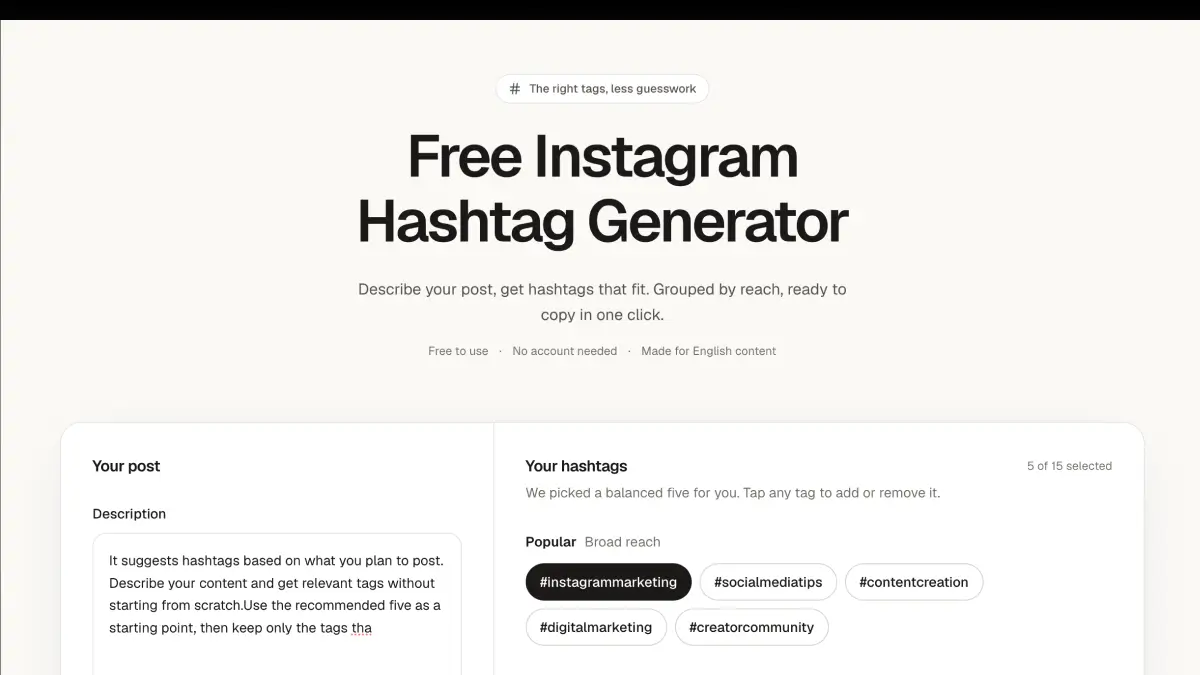
Generate a short list, then move the few tags you keep to the end of the LinkedIn draft.
If you are sharing an external URL, check whether it generates a large link card. A link in the comments is sometimes easier to read than a card that pushes the text down.
Preview first, then schedule
Copying a draft into LinkedIn every morning gets old if you post often. With PostPiper, you can write, preview, and schedule LinkedIn and X posts in one place, or send a draft from an AI workflow through MCP and the API.
Frequently asked questions
Can you preview a LinkedIn post before posting?
No. LinkedIn doesn't offer a native preview that shows feed truncation before you publish. Saving a draft or scheduling a post lets you read the raw text, but you won't see where ...see more cuts off on mobile versus desktop. Paste the draft into the free LinkedIn post preview to check the layout.
How do I preview a LinkedIn post on mobile and desktop?
Paste your text into the LinkedIn post preview and add a JPEG or PNG if the post has an image. Switch between Mobile and Desktop, and check the first two or three lines so the hook stays above the fold.
Why does my LinkedIn post look different on mobile and desktop?
LinkedIn uses different character and line-break cutoffs depending on screen size and media type. Text-only posts fold around 210 characters (about 3 lines) on desktop and 140 characters on mobile. Posts with an image, video, or document fold earlier, often after two lines.
Is there a free LinkedIn post preview with no signup?
Yes. The free LinkedIn post preview runs in the browser with no account. You can test line breaks, emojis, hashtags, and a single image before copying the draft to LinkedIn.
Can I edit, preview, and schedule a LinkedIn post in one place?
Yes. Use the previewer for a formatting check, or connect LinkedIn in PostPiper to draft, preview, and schedule without pasting the text between tools.