How to Schedule Social Media Posts with MCP (Claude, ChatGPT & Cursor)
To schedule social media posts with MCP (Model Context Protocol), connect PostPiper’s hosted server to Claude, ChatGPT, or Cursor. Attach your images, save a draft in the chat, and confirm the exact copy, account, and time zone before the post is queued.
- Connect https://mcp.postpiper.ai/mcp and sign in.
- Ask the AI to draft the post and attach the images.
- Confirm the exact text, account, and time zone, then schedule it.
The server uses Streamable HTTP, so you paste one URL. You do not install Node.js or keep a local MCP process running.
Why schedule from the chat where the draft already lives?
Claude, ChatGPT, or Cursor can call PostPiper from the chat where you wrote the caption. A changelog, a blog paragraph, or a product note can be scheduled from that same thread. You skip the extra pass where you copy the text, upload the image, and type the time into another form.
| Step | Dashboard | PostPiper MCP |
|---|---|---|
| Writing | Copy the caption out of the AI chat | Keep editing in the same chat |
| Images | Download the file and upload it again | Use the uploader, a public image URL, or an image already in your library |
| Platforms | Open a separate form for each network | Name the network in the prompt |
| Review | Check the form before you hit schedule | Read the preview, then confirm |
Leave a post unscheduled until it is ready. The weekly planning guide covers that queue check. If you are still choosing a scheduler, the ChatGPT and Claude comparison lists which tools expose MCP and what their plans include.
What you need before you start
- An MCP client: Claude on the web or desktop, ChatGPT, Cursor, or Claude Code.
- A PostPiper account with at least one connected account on X or LinkedIn.
- Images, if the post needs them. Local files can be JPEG, PNG, or WebP. A public image must be an HTTPS URL.
Create a PostPiper account and connect X or LinkedIn in the dashboard before the test prompt below. Setup for Claude, ChatGPT, and Cursor is in the MCP setup guide.
Step 1: Connect PostPiper’s remote MCP server
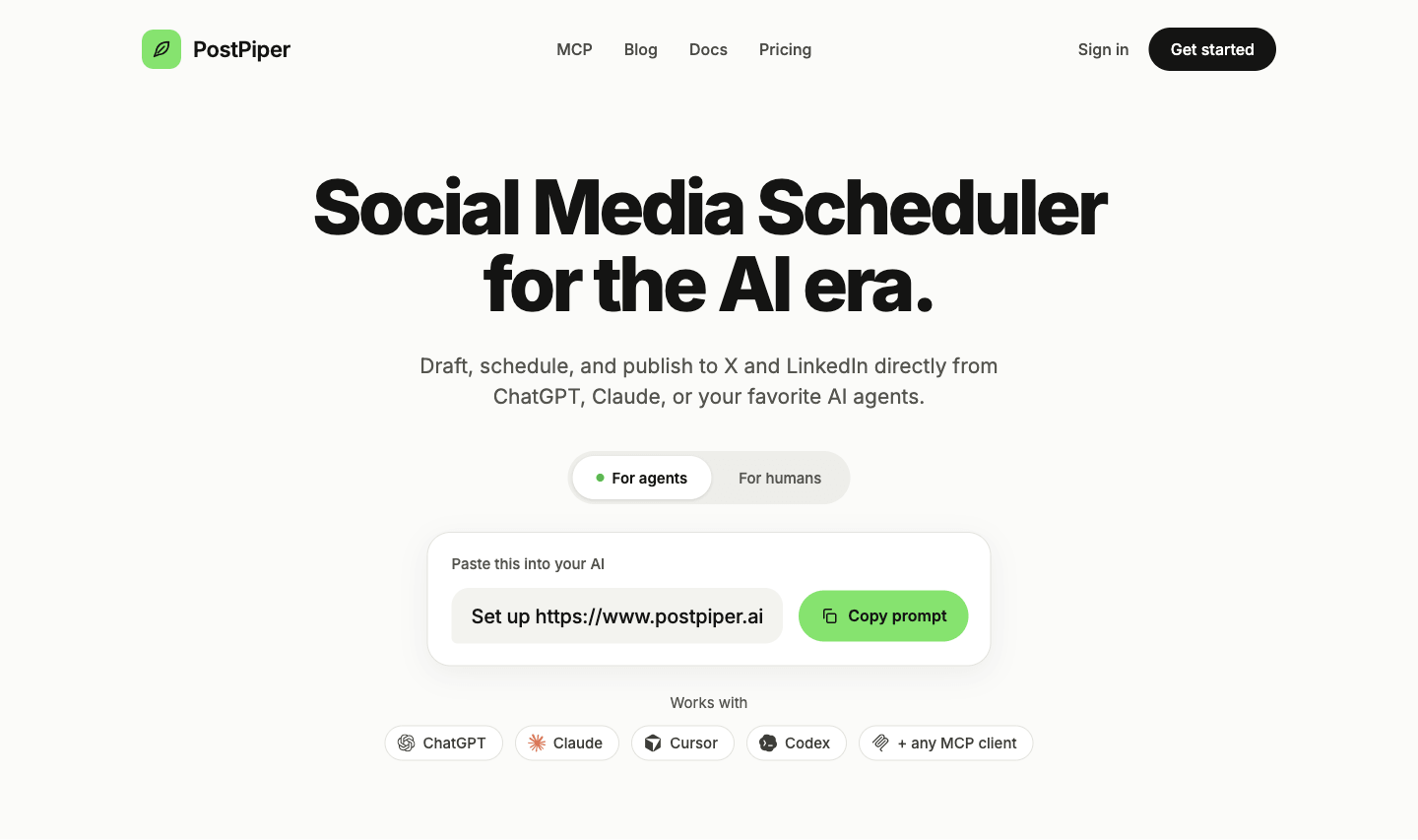
PostPiper’s remote MCP server is the same endpoint for Claude, ChatGPT, and Cursor.
Use https://mcp.postpiper.ai/mcp. After you add it, the client sends you through PostPiper sign-in. That OAuth flow does not ask for an API key. Cursor can send an API key header instead, and the setup guide shows where it goes.
Claude (web and desktop)
- Open Settings, then Connectors, then Add custom connector.
- Name it PostPiper.
- Paste
https://mcp.postpiper.ai/mcp. - Click Add and sign in with your PostPiper account.
Claude’s own steps are in Get started with custom connectors using remote MCP.
ChatGPT
PostPiper is not in ChatGPT’s public plugin directory. Add it as a custom MCP server:
- Open ChatGPT plugins, choose +, then Add custom MCP server.
- Name it PostPiper, paste
https://mcp.postpiper.ai/mcp, and choose OAuth. - Create the plugin, install it from your personal plugins, and finish authorization.
- In a chat, call it with
@PostPiper.
Your ChatGPT account or workspace has to allow custom MCP servers. OpenAI documents the current control in the custom MCP server guide.
Cursor and Claude Code
In Cursor, add this to ~/.cursor/mcp.json, or to .cursor/mcp.json inside a project:
{
  "mcpServers": {
    "postpiper": {
      "url": "https://mcp.postpiper.ai/mcp"
    }
  }
}
Cursor then asks you to sign in with your PostPiper account.
Claude Code uses a command instead of that JSON file:
claude mcp add --transport http --scope user postpiper https://mcp.postpiper.ai/mcpIn Claude Code, run /mcp, select PostPiper, and authenticate.
Check that the connection works
Ask:
List my connected PostPiper accounts.
You should see the platform and username for each account you connected. If the list is empty, connect an account in the PostPiper dashboard and ask again.
Step 2: Attach images
Uploading an image stores it in your PostPiper library. The upload does not publish a post. Attach the saved image when you create or update a draft.
In Claude or ChatGPT, say “Open the media uploader.” The card takes up to 20 JPEG, PNG, or WebP images, 5 MB each. Add a description in the card if you want alt text on X or LinkedIn. Cursor and Claude Code do not show this card, so those clients need a public image URL.
For a file that is already online, paste an HTTPS link the server can download and ask the AI to import it. The file has to be HTTPS and at most 5 MB. You can include alt text in the same request, and X and LinkedIn use that description when the image is published. Example: “Import https://example.com/cover.png with alt text describing the product screenshot.”

If the file is already in PostPiper, say “Show my latest uploaded images in PostPiper.” The draft can reuse that asset, so you do not send the file again.
Step 3: Create a draft first
Scheduling and publishing only run on drafts. Ask for the draft, edit it in the chat, and leave it unscheduled until the wording is right.
Create a LinkedIn draft for my connected account about our MCP launch. Attach my latest uploaded screenshot, keep it under 1,200 characters with 3 bullet points, and do not schedule it yet.
To revise that draft:
Make the hook punchier and remove the hashtags.
That update changes the draft. A post that is already scheduled or published stays as it is. If several drafts are open, name the draft or repeat the account so the edit lands on the right one.
Step 4: Confirm the details and schedule
Ask for the preview before the post is queued. Check the exact text, the images, the account, and the time zone. Tell the AI to schedule only after that preview matches what you want. PostPiper stores the time as UTC and returns that UTC time once scheduling succeeds.
Schedule that LinkedIn draft for next Tuesday at 9:00 AM America/Los_Angeles. Show me the exact text, image, account, and time zone before you schedule it.
scheduled_at has to be a future ISO 8601 time with an explicit offset, such as 2026-11-24T09:00:00-08:00. “Tomorrow at 9am” is easy to misread once the chat crosses midnight. Name the zone.
To see the queue:
List my scheduled posts for next week. Include the account, platform, and scheduled time.
LinkedIn text must be 1 to 3,000 characters, with at most 20 images at 5 MB each. The LinkedIn authorization also has to stay valid past the scheduled time. Reconnect the account in the dashboard if a post would run after the token expires.
Copy-paste prompts for X and LinkedIn
Swap the account, time, and links. Each prompt stops at a preview so you can reject it before it is scheduled.
X: multi-image product update
Import these two public HTTPS image URLs and write alt text for each. Create an X draft under 260 characters about our new dark mode. Show me the draft, images, account, and time zone before scheduling it for tomorrow at 10:00 AM America/New_York.
PostPiper accepts up to 20 images on an X draft, and it accepts long text. X can still reject a post longer than 280 characters when the account cannot publish long posts, which is why the prompt above stays under 260.
LinkedIn: turn a blog post into a post
Turn the blog post below into a LinkedIn draft under 1,500 characters. Use a direct opening line and short paragraphs. Attach my uploaded cover image. Show the draft and ask me to confirm before scheduling it for Thursday at 8:30 AM America/Los_Angeles.
LinkedIn’s limit is 3,000 characters and 20 images. The prompt asks for 1,500 so the draft stays easier to read. LinkedIn still accepts up to 3,000.
Best practices and common pitfalls
- Write the time zone in the prompt. Use
9:00 AM America/New_Yorkor9:00 AM Asia/Shanghai. Check the UTC time PostPiper returns against the local time you asked for. - Draft the week, then schedule. Create the drafts in one sitting, read each preview, and confirm the times after that. A vague “schedule all of these tomorrow morning” is where the wrong day shows up.
- Match the image rules before you queue the post. X and LinkedIn take up to 20 images, 5 MB each. The Claude and ChatGPT uploader uses those same type and size limits.
- Reconnect LinkedIn before a post that would run after the token expires. PostPiper cannot refresh a LinkedIn member token at publish time.
Frequently asked questions
Can Claude or ChatGPT schedule social media posts directly?
Claude and ChatGPT do not publish to your social accounts on their own. Connect a social media MCP server such as PostPiper, sign in, and connect at least one account. The AI can then create a draft and schedule it after you confirm the preview. A caption that only exists in the chat stays off the calendar until the schedule runs. Setup steps are at https://www.postpiper.ai/docs/mcp.
Will the AI publish a post without my permission?
PostPiper schedules and publishes drafts only. The schedule and publish tools tell the AI to show the exact text, images, account, and time zone, then wait for your confirmation before calling them. Read that preview before you tell it to continue. TikTok also requires an explicit consent flag. If you want to stop at a draft, say that in the prompt.
Which social platforms work with PostPiper MCP?
You can draft, schedule, and publish X posts, LinkedIn posts, and TikTok videos from https://mcp.postpiper.ai/mcp. This guide covers X and LinkedIn. Instagram scheduling is not available. Facebook scheduling stays in the PostPiper dashboard.
Do I need to run a local server or pay per social channel?
No. Add https://mcp.postpiper.ai/mcp in Claude, ChatGPT, or Cursor and sign in with your PostPiper account. PostPiper does not charge per social channel. Free includes 30 one-time post credits and unlimited connected accounts. Monthly credits are $10 for 1,000 posts or $25 for 3,000 posts. Plan details are at https://www.postpiper.ai/pricing.